

Find your way around
After you sign in you land on Overview: a summary of your projects, what’s waiting for your approval, and what you owe.
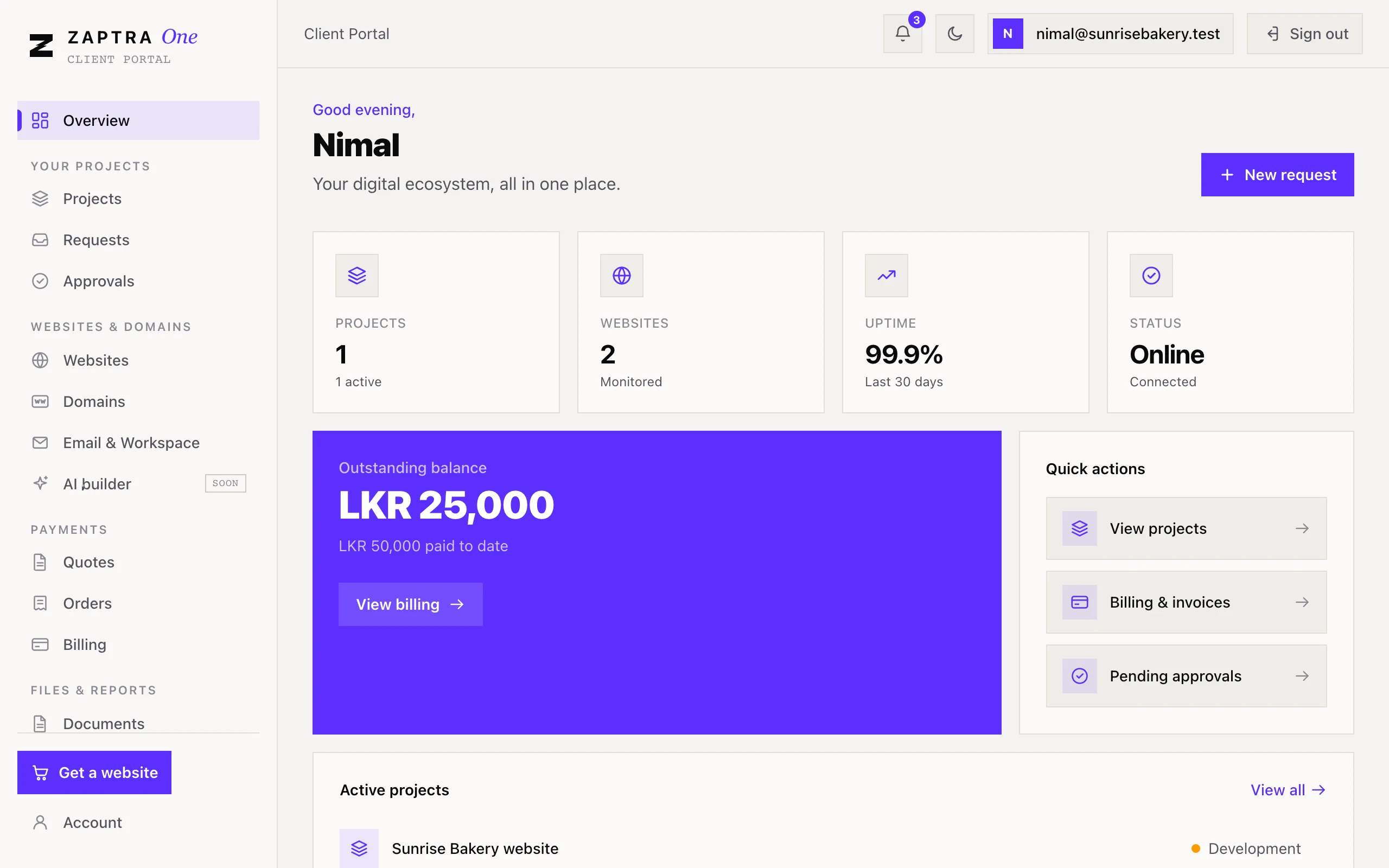
The menu
Section titled “The menu”The menu is on the left. On a phone, tap the ☰ button at the top to open it.
| Section | Pages | What you do there |
|---|---|---|
| Your projects | Projects, Requests, Approvals | Follow progress, ask for changes, approve demos |
| Websites & domains | Websites, Domains, Email & Workspace | See your sites, buy or connect domains, request business email |
| Payments | Quotes, Orders, Billing | Answer quotes, see orders, pay invoices |
| Files & reports | Documents, Reports | Download contracts and documents, read your reports |
At the bottom of the menu are Get a website, to order a new service, and Account, for your password.
You only see the pages your role allows. For example, a Finance user doesn’t see Projects. See Who can do what.
Notifications
Section titled “Notifications”The bell at the top right shows a number when something new needs your attention, like a new invoice, a demo to approve, or a reply from our team. Click it to see the list, and click an item to go straight to it. Mark all read clears the number.
We send the important ones by email too.
Light or dark
Section titled “Light or dark”The sun/moon button at the top switches between light and dark mode. Zaptra One remembers your choice on that device.