

Pay an invoice
You pay Zaptra invoices by bank transfer, then upload the slip in Zaptra One. Your payment counts once we’ve checked it has reached our account.
Find the invoice
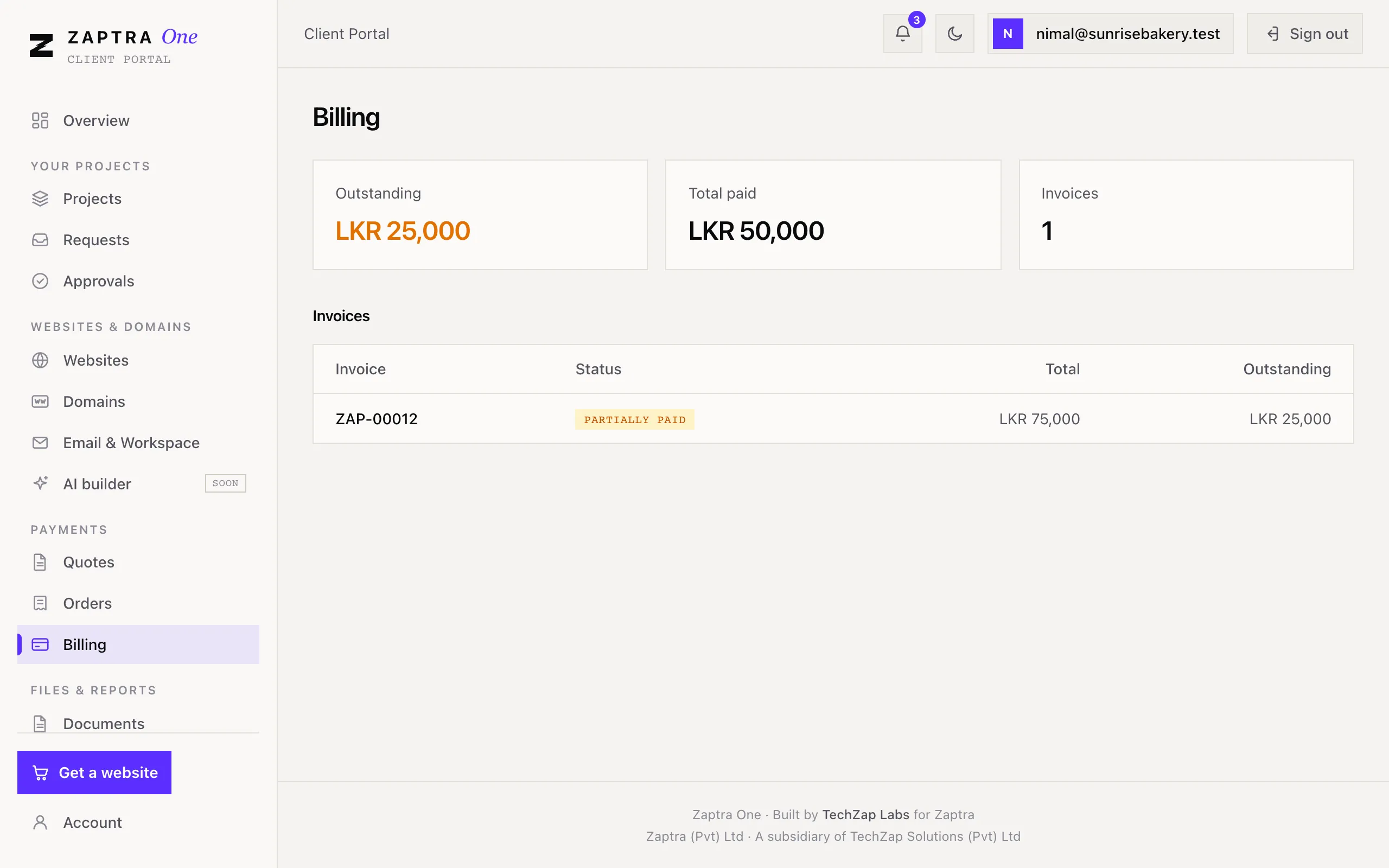
Section titled “Find the invoice”Go to Payments → Billing. Under Invoices you’ll see each invoice’s number, status, total and what’s still to pay. Click an invoice number to open it.
The invoice shows the Total, what’s been Paid, and the Balance. Click Download PDF for a copy.
Pay by bank transfer
Section titled “Pay by bank transfer”Under How to pay you’ll find the bank details and the amount to pay.
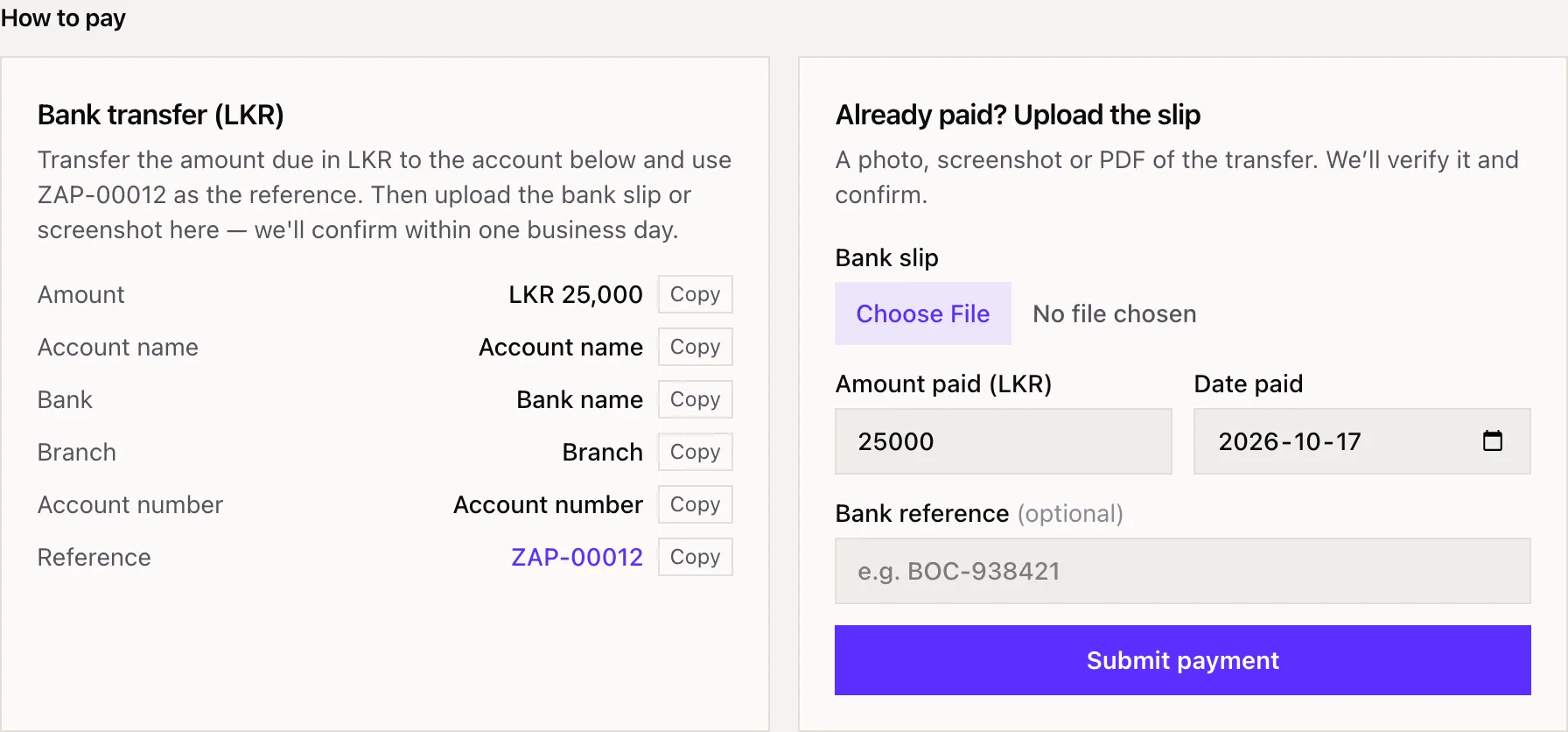
- Make the transfer from your bank or banking app. Use the Copy buttons to copy each detail exactly.
- Put the Reference shown (your invoice number, like ZAP-00012) in the transfer’s reference or remarks, so we can match your payment.
- Keep the bank slip, or take a screenshot of the confirmation.
Upload your bank slip
Section titled “Upload your bank slip”Under Already paid? Upload the slip:
- Choose the slip: a photo, screenshot or PDF, up to 10 MB.
- Check the Amount paid and the Date paid.
- Add the Bank reference from your slip if you have one. It’s optional.
- Click Submit payment.
The invoice now shows Payment being verified. We usually confirm within one business day. Once we do, the payment shows Verified under Payment history and we email you a receipt.
You can pay an invoice in parts. Upload a slip for each payment; the balance goes down as each one is verified.
Only an Owner or Finance user can upload slips.
Reminders
Section titled “Reminders”If an invoice is still unpaid, we send email reminders 3 days before it’s due, on the due date, and then weekly while it’s overdue.