

Answer a quote
When we prepare a quote for you, you get an email with a link. You’ll also find every quote under Payments → Quotes.
Read the quote
Section titled “Read the quote”A quote shows its number and version (for example ZQ-00012 · version 2), who it’s for, and the date it’s valid until. Below that:
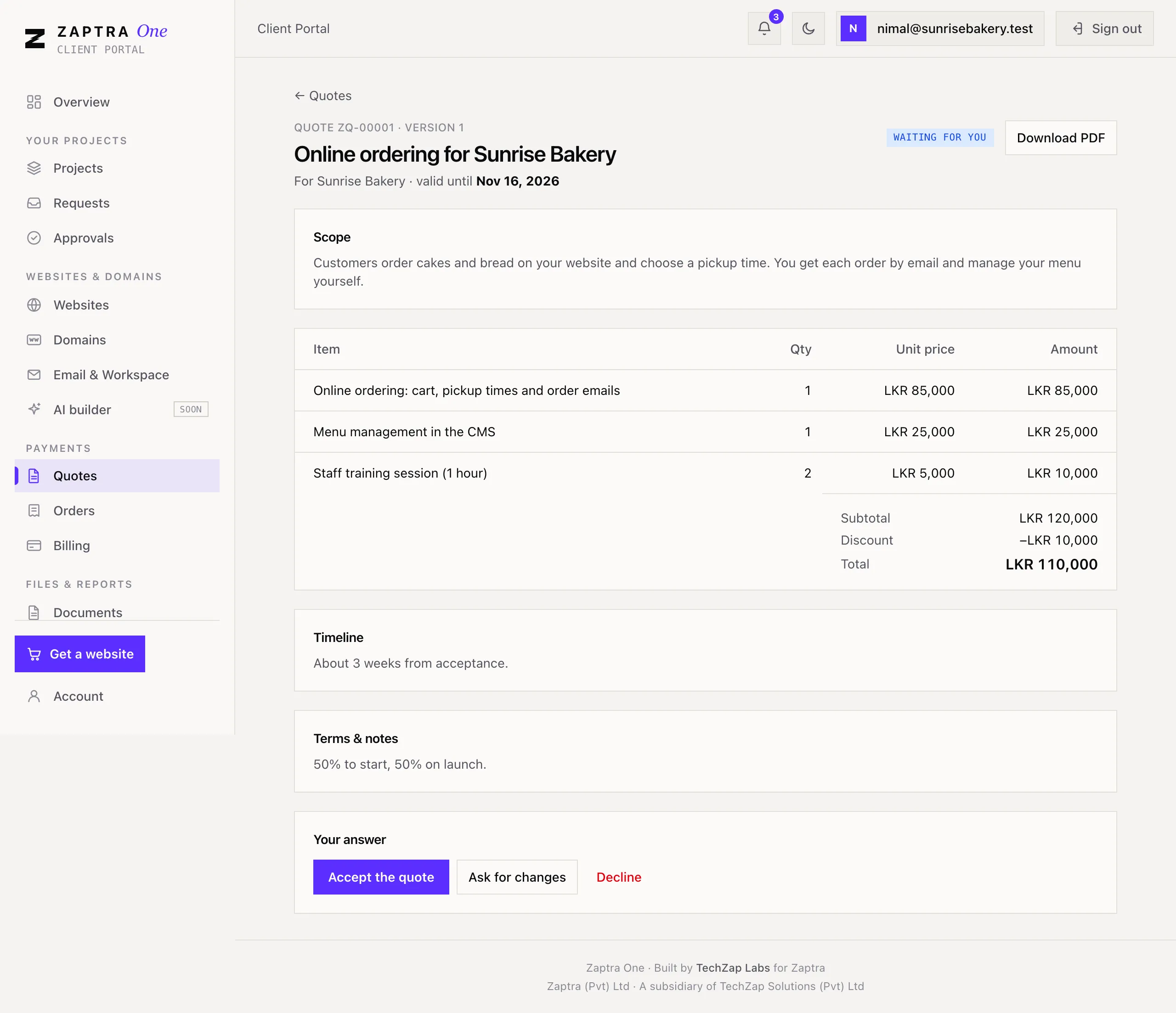
- Scope: what’s included.
- Items: each item with quantity, unit price and amount, then the subtotal, any discount, and the total.
- Timeline and Terms & notes, when we’ve added them.
Click Download PDF to save a copy or share it with your team.
Accept it
Section titled “Accept it”- Open the quote and check the version and total.
- Click Accept the quote.
- Confirm when asked.

You’ll see Accepted, and we’ll send the invoices next. Only an Owner or Finance user can accept. Others see a note saying so.
Ask for changes
Section titled “Ask for changes”Click Ask for changes, write what you’d like us to change, and click Send to Zaptra. We’ll send you an updated version. You can still accept the current one while you wait.
Decline it
Section titled “Decline it”Click Decline, add a reason if you like, and click Decline the quote.
Got a quote link but no account?
Section titled “Got a quote link but no account?”If you’re not a Zaptra client yet, the link in your email opens the quote without signing in. Type your name (and your email, if we only had your phone number) to accept. When you accept, we set up your Zaptra One account so you can follow your project and pay invoices.